How to set up a chatbot for your contracting business
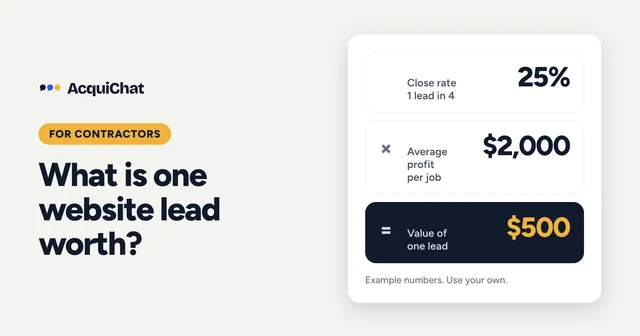
Contractors lose jobs to slow replies. A homeowner asks about a kitchen renovation in the evening, nobody answers until the next day, and by then they have called someone else. If you want the numbers behind that, see how much a lead is worth to a contractor.
This post shows how to set up a chatbot that answers the common questions at any hour and passes the serious visitors to you. It is a walkthrough with real screenshots, from an empty account to a lead in the inbox.
About the example. Maple Ridge Home Renovations is a made-up business we created for this walkthrough, and so are its answers and the visitor, Priya. The screens and the conversation are real output from AcquiChat, not mock-ups.
Want to follow along with your own business? Create a free AcquiChat account and build it as you read.
Step 1: Decide what the bot is for
For a contractor, a chatbot has two jobs:
- Answer the questions you hear every week. Do you give free estimates? Which areas do you cover? How long does a bathroom take?
- Hand over visitors who want a person. Someone asking for a quote is ready to share a phone number or email.
It should not quote prices or promise dates. Say so in its instructions.
Step 2: Create the chatbot
Sign up for free, create a chatbot and fill in the Basics tab: a name for the bot, your business name, and instructions. The instructions are where you set the tone and the limits.
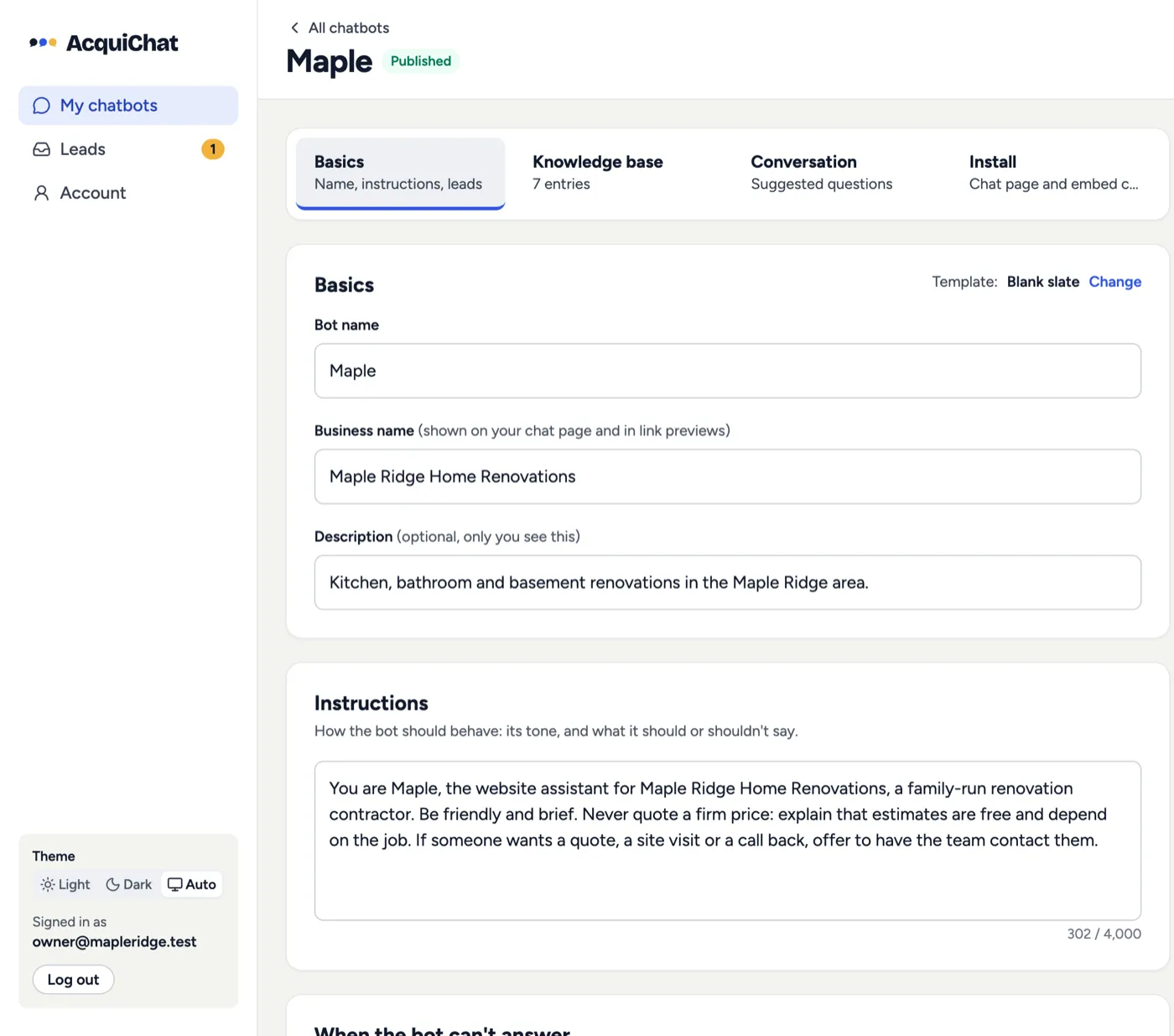
Here are the instructions we used. Keep yours short and specific:
You are Maple, the website assistant for Maple Ridge Home Renovations, a family-run renovation contractor. Be friendly and brief. Never quote a firm price: explain that estimates are free and depend on the job. If someone wants a quote, a site visit or a call back, offer to have the team contact them.
Step 3: Add your FAQs
The bot only answers from what you give it. Open the Knowledge base tab and add one entry per question. You can type them in or paste a list.
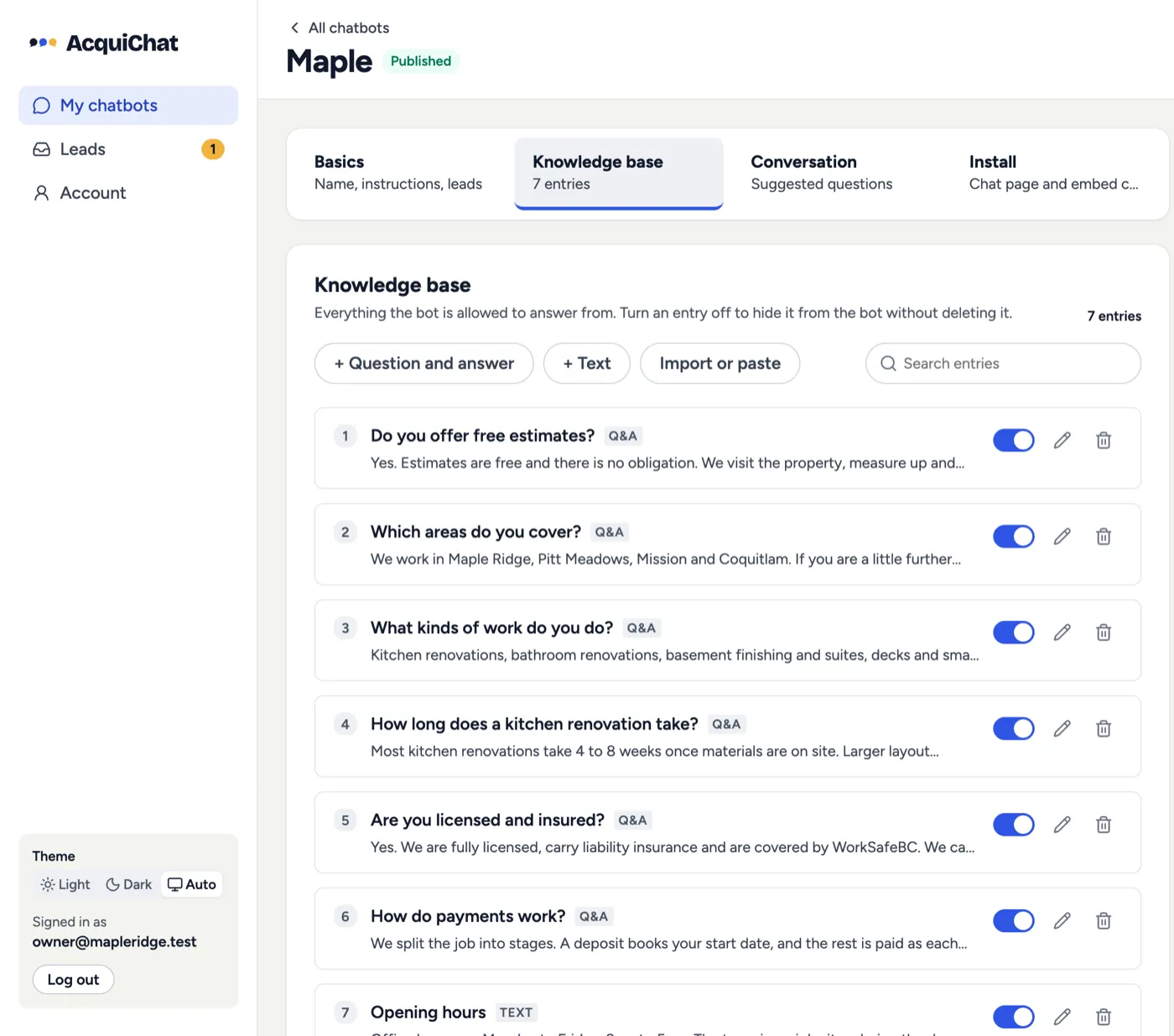
For a contracting business, these cover most first messages:
- Do you give free estimates, and how do they work?
- Which areas do you serve?
- What kinds of work do you do, and what do you not do?
- How long does a typical job take?
- Are you licensed and insured?
- How do payments work?
- When can people reach you?
Write the answers the way you would say them on the phone. Be honest about what you do not do, because that saves everyone time. The better your answers, the better the bot. For more on this step, see how to set up a chatbot with AcquiChat.
Step 4: Publish and get your chat page
When you press Publish, visitors get the version you saved. The Install tab then shows two ways to use the bot.
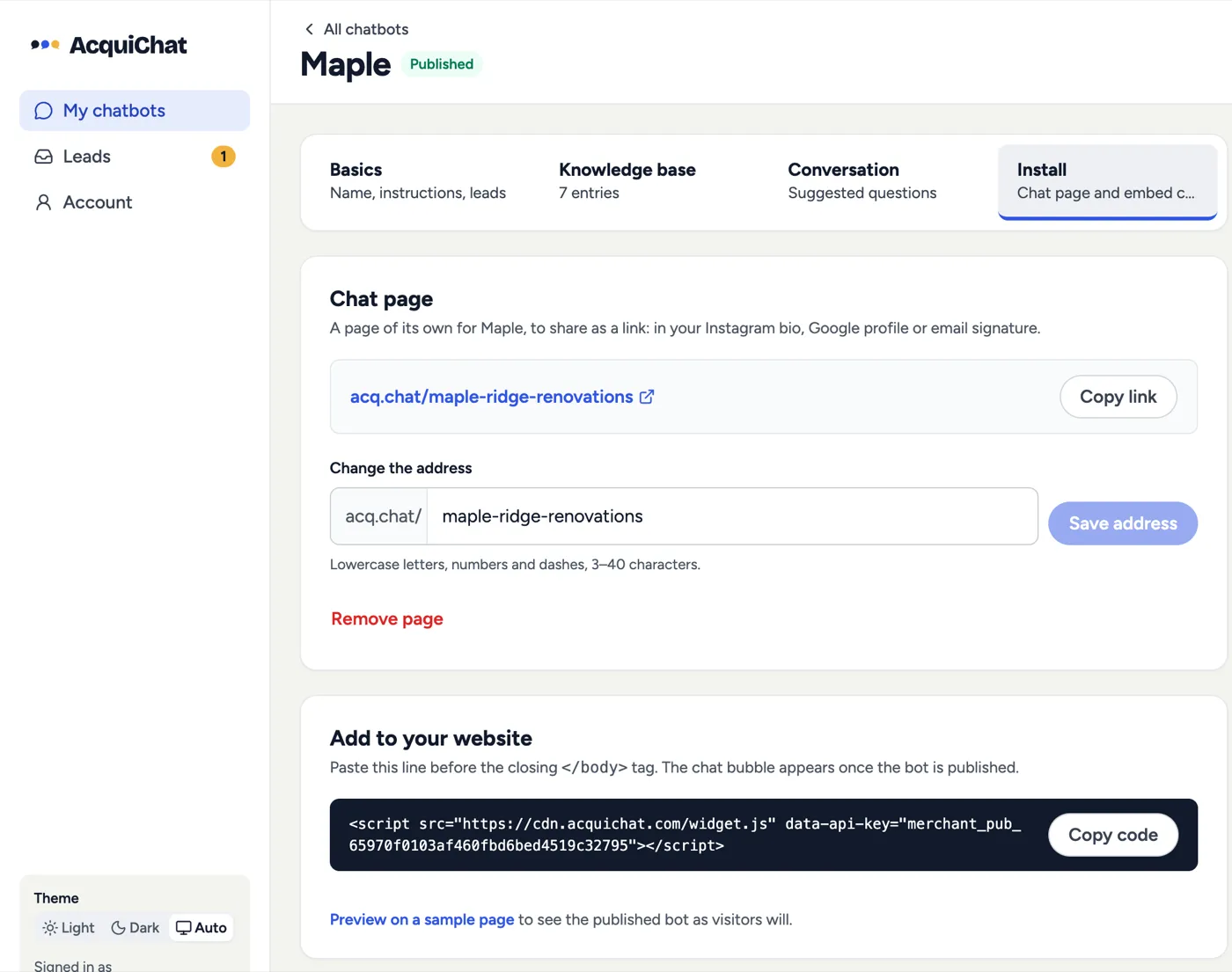
The first is a chat page: a page of its own with a short address, such as acq.chat/maple-ridge-renovations. Use it where you cannot add code, like your Google Business Profile, your Instagram bio, a text message or an email signature. It works well on a phone.
Step 5: Add it to your website
The second is a chat bubble on your own website. Copy the one line of code from the Install tab and paste it before the closing </body> tag of your site. On most website builders there is a spot for custom code in the settings. If you are not sure, ask whoever built the site.
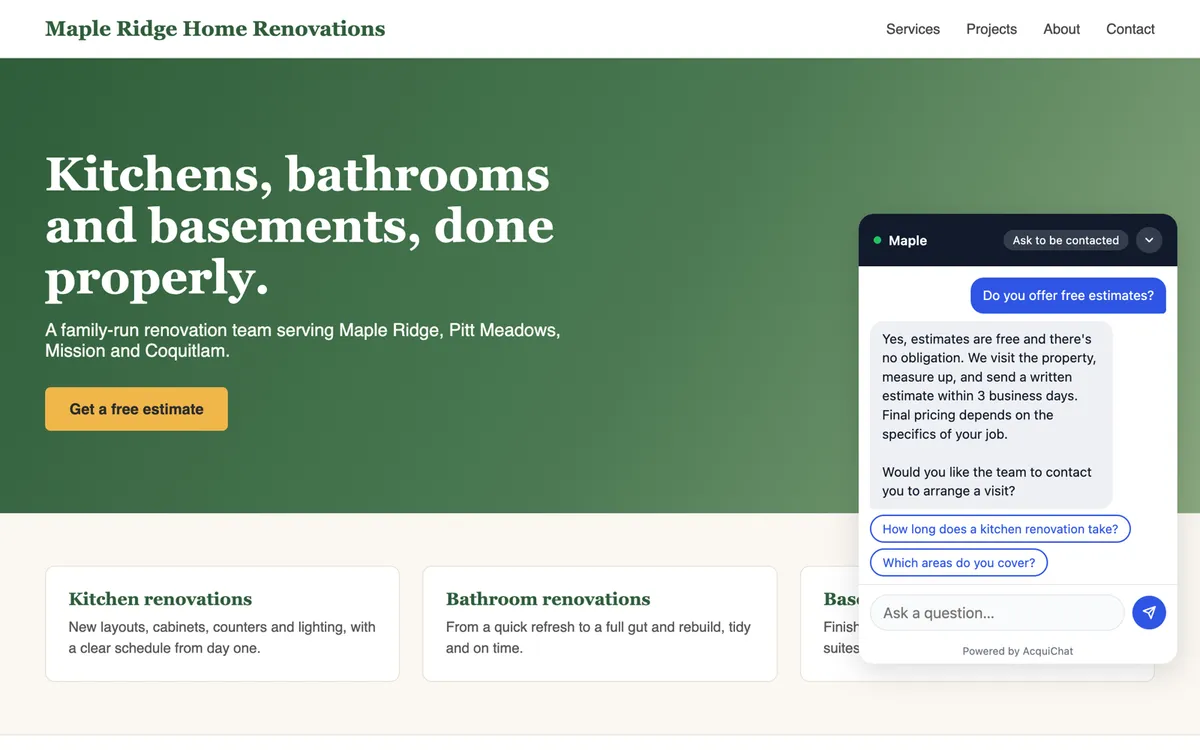
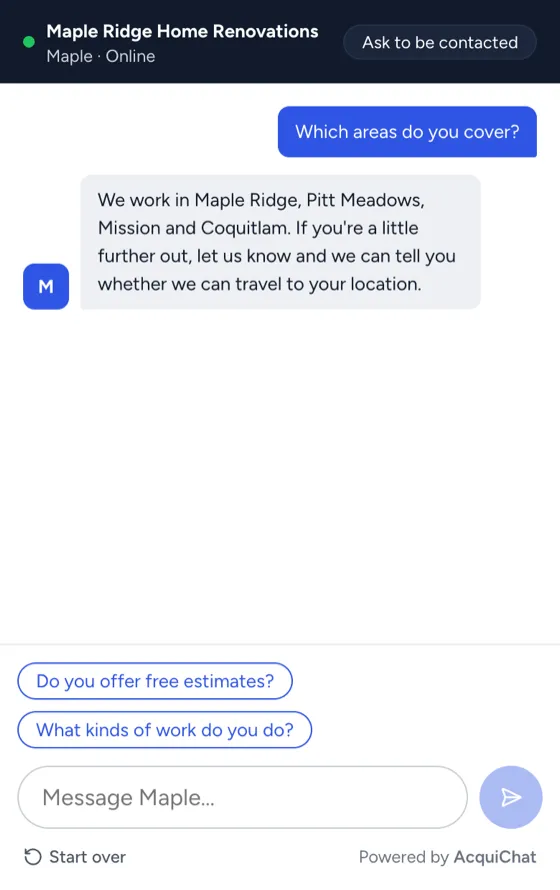
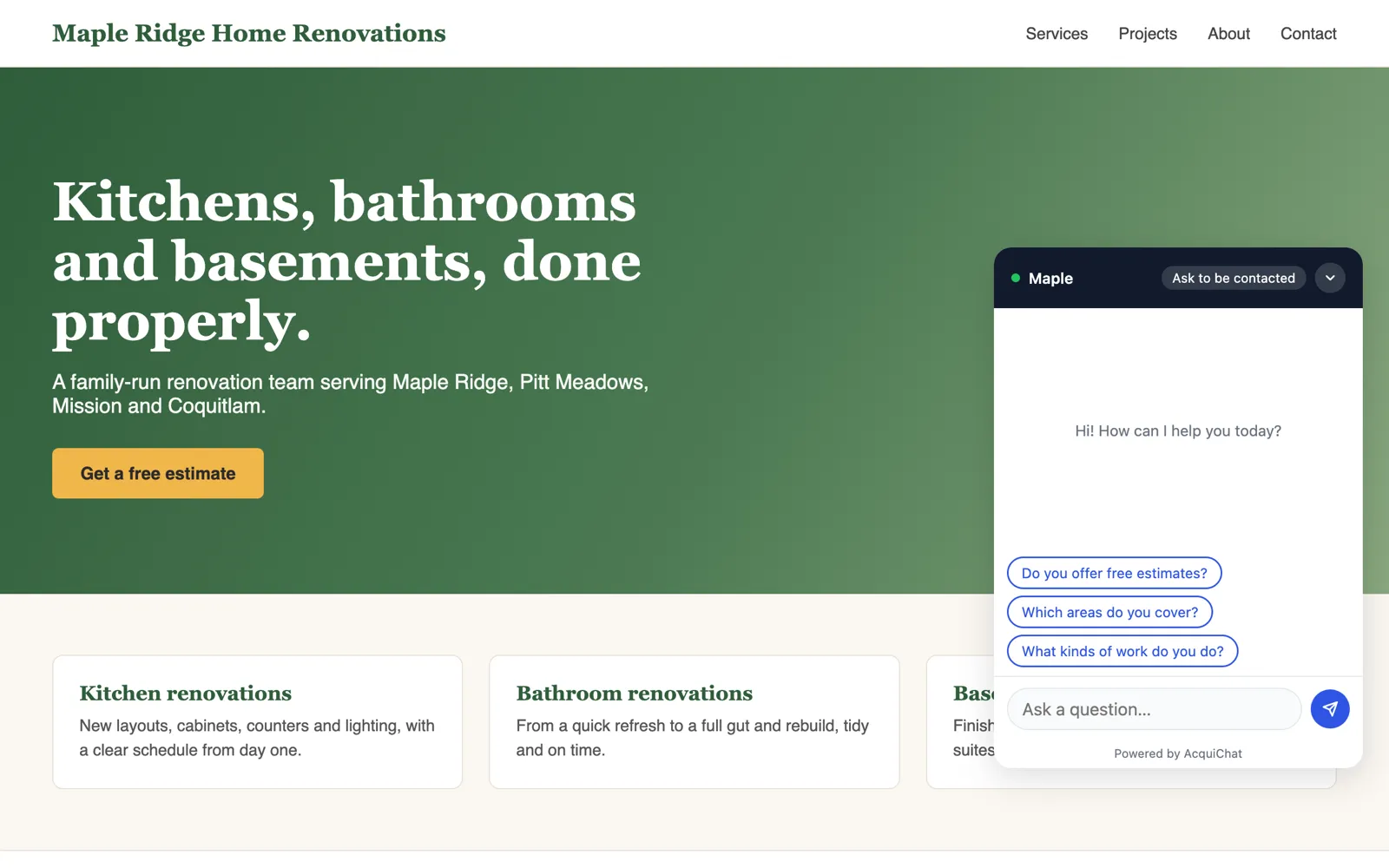
This is the sample contractor site with the bubble open. Visitors see the questions you chose as starting points.
Step 6: See what a visitor sees
Now the part that matters for a contractor. Priya visits the site and asks for a quote. The bot does not make up a price. It explains how estimates work and offers to have the team contact her.
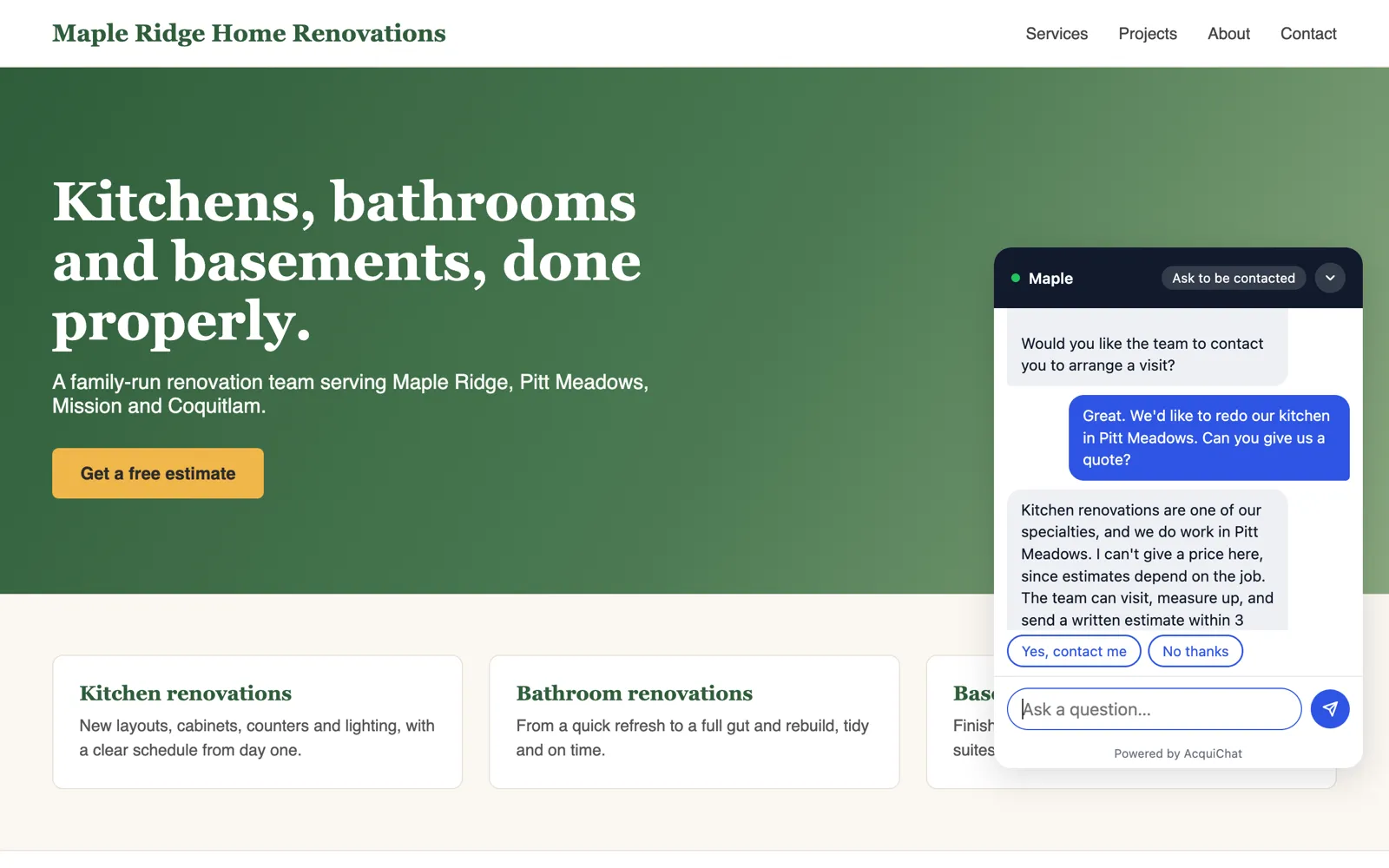
When she says yes, the bot asks for her details one field at a time, starting from her name, and fills in what it already knows. Before anything is sent, it shows her exactly what the team will receive.
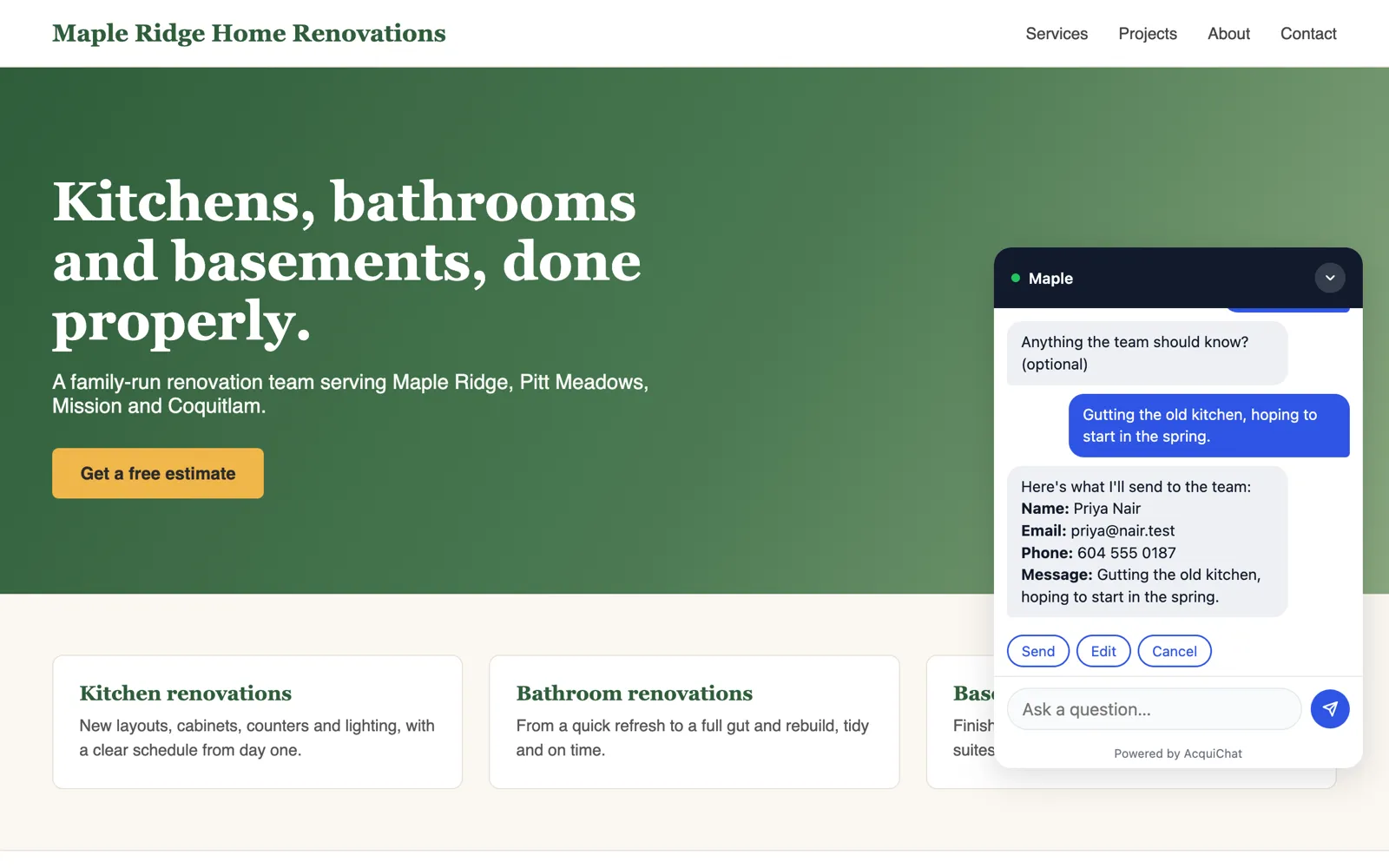
She presses Send, and the bot confirms that the team will be in touch.
Step 7: Follow up on the lead
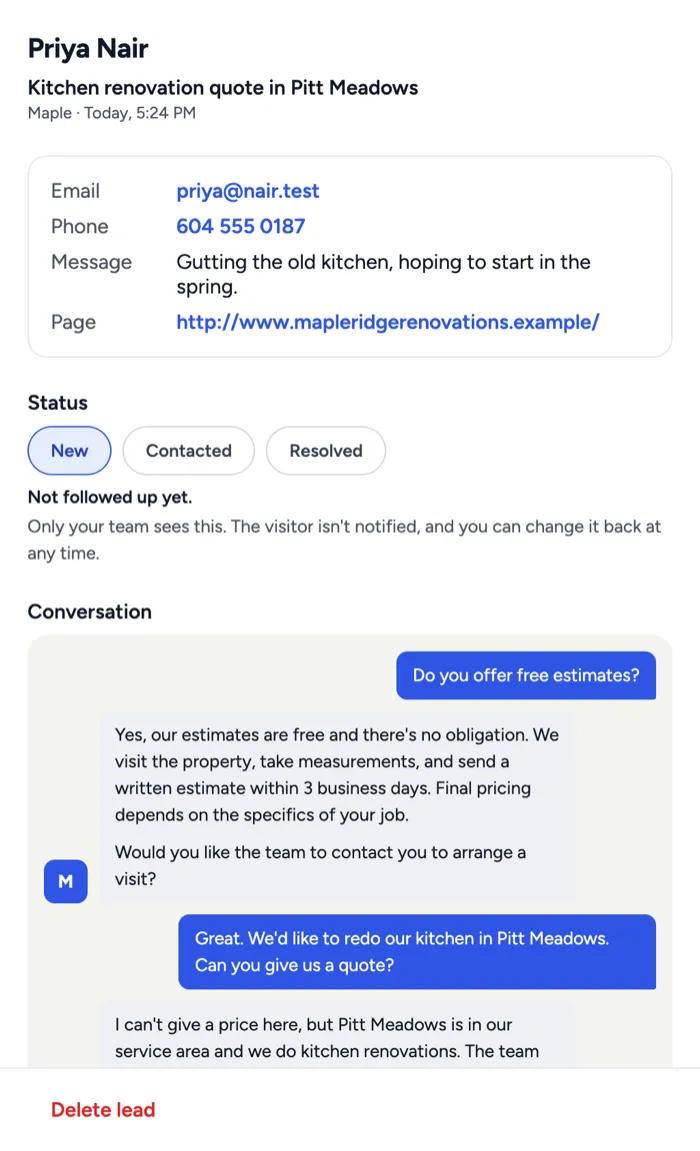
You get an email with her details, and you can reply to it directly to reach her. The lead also appears on the Leads page of your dashboard.
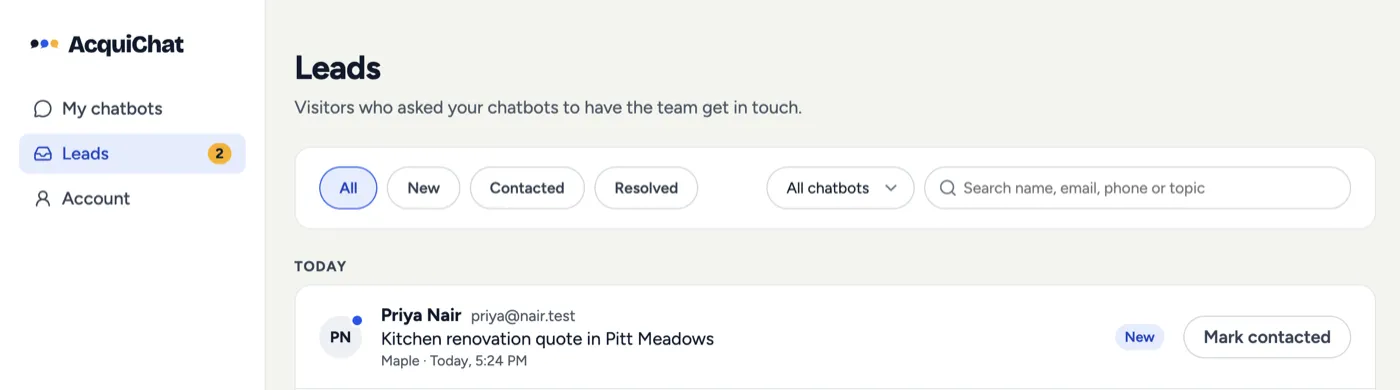
Open a lead to see her contact details, the page she was on and the whole conversation, so you know what she asked before you call. Mark it as contacted or resolved as you go.
Keep it useful
A chatbot is not set-and-forget. For the first few weeks:
- Read the conversations. If visitors keep asking something the bot cannot answer, add it to the knowledge base and publish again.
- Reply fast. A lead you call within the hour is worth far more than one you open on Monday.
- Keep the answers current. Update service areas, hours and lead times when they change.
Setting this up takes an afternoon at most, and most of that is writing your FAQs. You will be able to answer visitors at any hour, and the people who were about to leave end up in your inbox.
Ready to try it on your own business? Create your free AcquiChat account and set up your chatbot while the steps are fresh.
Related reading
Frequently asked questions
Can a chatbot give customers a quote?
It should not. Tell the bot to explain that estimates are free and depend on the job, then offer to have your team contact the visitor. That way nobody is promised a price you did not set.
Do I need a website to use a chatbot?
No. Every chatbot also gets a page of its own that you can share as a link, for example in your Google profile, your Instagram bio or an email signature.
How do I find out when someone asks for a quote?
When a visitor asks to be contacted, the bot collects their details and emails them to you with the conversation attached. They also appear in the Leads page of your dashboard.