Add a chatbot to a home service website with no code
The easiest way for a home service business to add a chatbot to its website is to write down the ten questions customers ask most, publish them in a chatbot builder, and paste one line of code into your site. There is nothing to install and no developer needed.
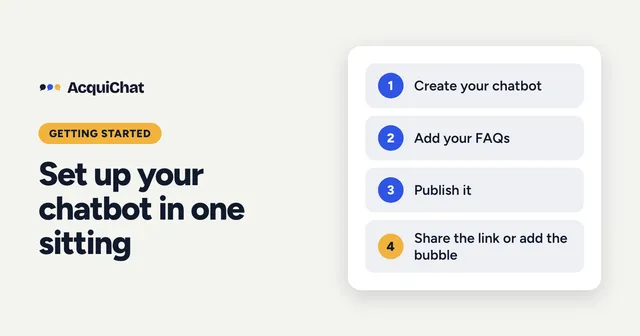
Here is the whole path, in the order you would do it. If you would rather follow screenshots, there is a full walkthrough in how to set up a chatbot for your contracting business.
What you need before you start
- A list of the questions you answer by phone and email every week.
- Access to your website’s settings (or just your Google Business Profile, if you have no site).
- About an hour.
Ready now? Create a free AcquiChat account and keep this page open beside it.
Step 1: Write the questions customers actually ask
Open your inbox and your missed-call list. For most home service businesses, the repeat questions are the same:
- Do you give free estimates?
- Which areas do you serve?
- Are you licensed and insured?
- How soon can someone come out?
- What does a job like mine cost, roughly?
Write one short answer for each, with real details such as service areas and hours. Do not invent prices you will not honour; “estimates are free and depend on the job” is a fine answer.
Step 2: Give the bot its limits
In the chatbot’s instructions, say who it speaks for and what it must not do. For example: be friendly and brief, never promise a price or a date, and offer to pass the visitor’s details to you when they want a quote.
Step 3: Publish it
Your changes are saved as a draft until you press Publish. Test the bot with the questions from step 1 and a few odd ones, fix any answer that is vague, then publish.
Step 4: Put it where customers are
You have two options, and you can use both:
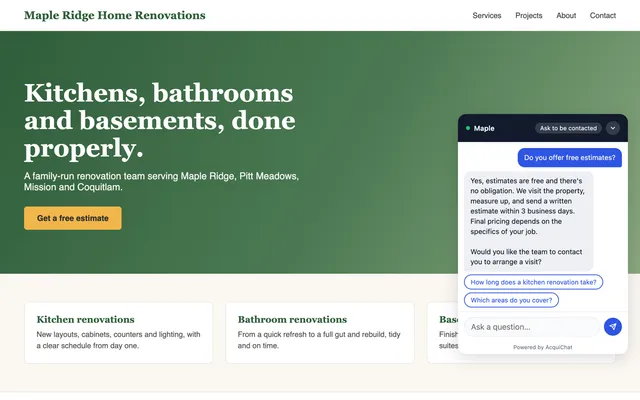
- On your website. Copy the embed snippet from the Install tab and paste it into your site’s custom code area, just before the closing body tag. Most website builders have a spot for it. See our guides for Wix, Squarespace and WordPress.
- As a link, instantly. Every chatbot also has a hosted chat page that is ready once you publish and choose its address in the Install tab. Put it in your Google profile, Instagram bio or email signature and customers can use it today. No website and no code needed.
Step 5: Know when someone wants you
When a visitor asks for a quote or a call back, the bot collects their name and contact details and emails them to you with the conversation attached. They also appear on the Leads page in your dashboard. To see why this matters, read how much a lead is worth to a contractor.
Keep it honest and current
Review the conversations once a week. Every time the bot could not answer, add that question to the knowledge base. After a month it will cover most of what people ask.
Start free and publish your first chatbot today.
Coming soon. Analytics, a summary of unanswered questions, integrations with other apps such as CRMs, and an MCP server for asking ChatGPT or Claude about new leads are planned.
Related reading
Frequently asked questions
Do I need a developer to add a chatbot?
No. You paste one script tag into your website builder's custom code area, or you skip the website entirely and share the chatbot's own page as a link.
How long does it take?
Most owners can write ten answers and publish in under an hour. Pasting the script takes a couple of minutes.
Will the chatbot make up answers?
It answers from the entries you wrote and your instructions. When it does not know, it can offer to pass the visitor's details to you instead of guessing.